


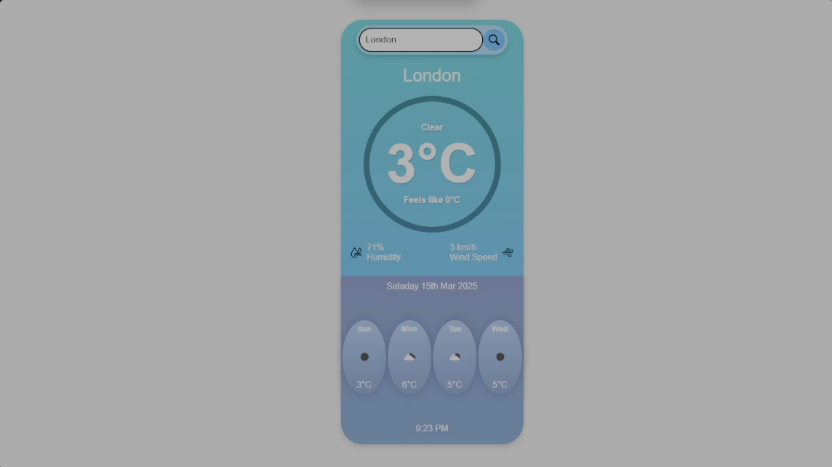
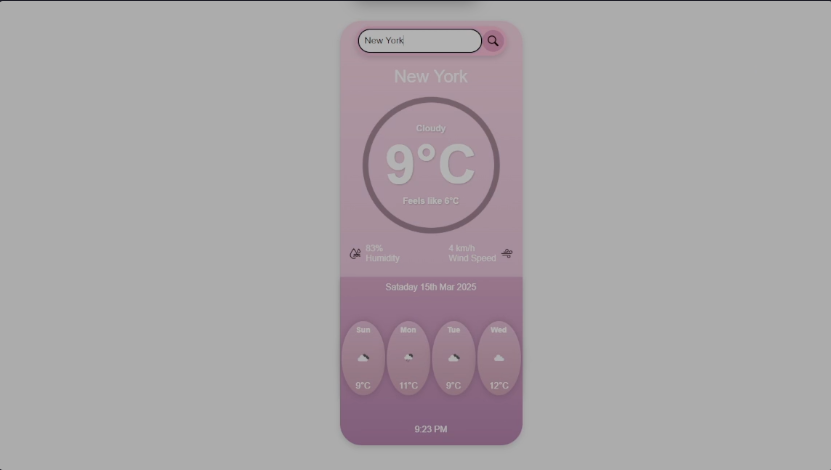
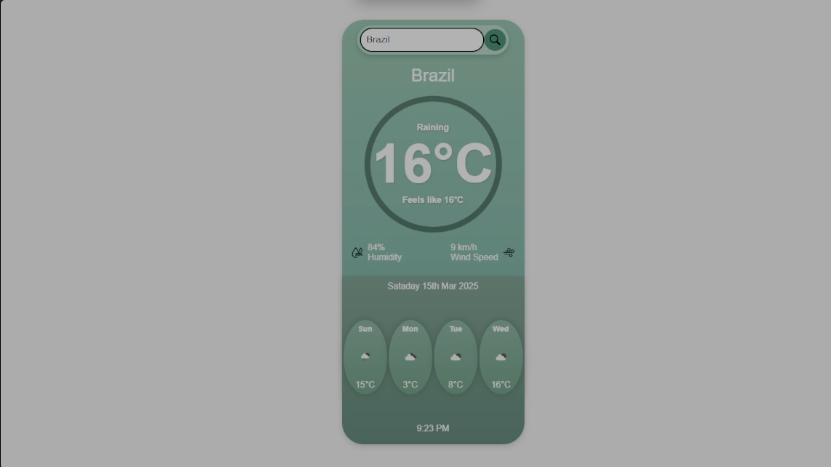
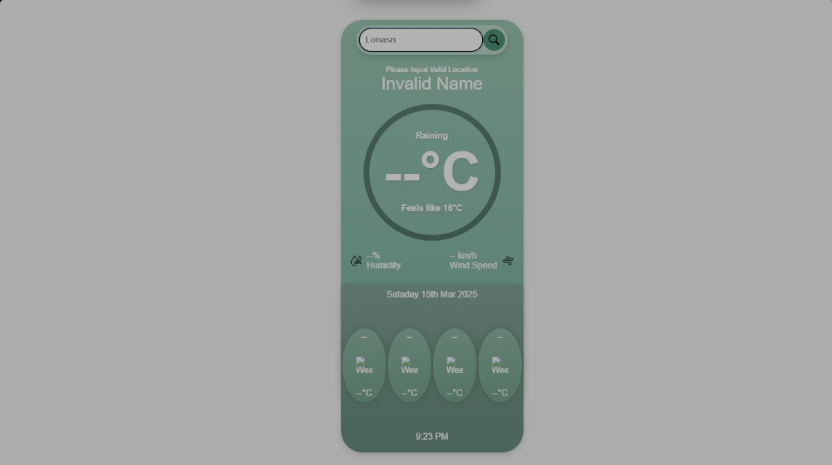
Stay informed and plan your day with ease using our Weather App. The app provides real-time weather data, including current weather conditions, a 4-day forecast, and the local time for your location. What makes this app stand out is its dynamic theme: the color scheme and interface adapt based on the current weather type, creating an immersive experience. Whether it’s sunny, rainy, or cloudy, the app changes its appearance to match the weather, giving you a visually engaging way to check your forecast.
Project Details
App Title: NA
Genre: Utility
Platform: PC
Development Tools: Javascript, HTML, CSS
App Features:
The weather app dynamically fetches real-time weather data from the OpenWeatherMap API and displays key weather information like temperature, weather condition (sunny, rainy, etc.), humidity, wind speed, and an icon representing the current weather. The app also shows a 4-day weather forecast to help users plan ahead.
Implementation
The app makes a GET request to the OpenWeatherMap API using JavaScript's fetch method to retrieve data about the user's location or a specified city.
The weather data is then parsed and extracted (temperature, condition, etc.) and displayed in the UI using DOM manipulation.
A forecast for the next 4 days is displayed with corresponding icons for each day based on the forecast data returned by the API.
Design Approach
To ensure a clean and user-friendly experience, weather data is displayed in clearly labeled sections: current weather at the top, followed by the 4-day forecast.
The weather icons are used to visually represent conditions (sun, clouds, rain, etc.), making it easier for users to interpret the information quickly.
The app uses a responsive design to ensure that the weather information is readable on both desktop and mobile devices.
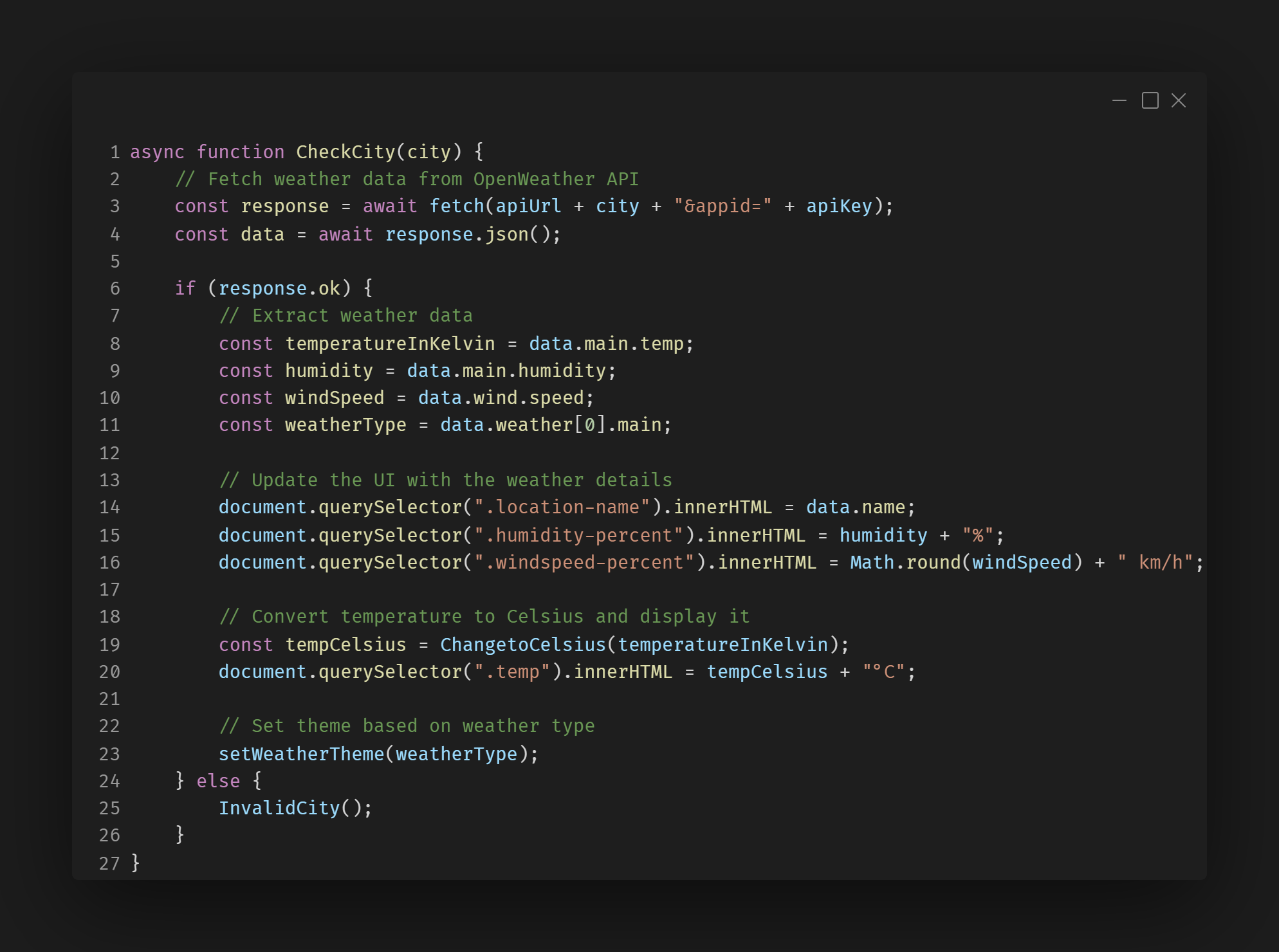
API Call to Get Weather Data
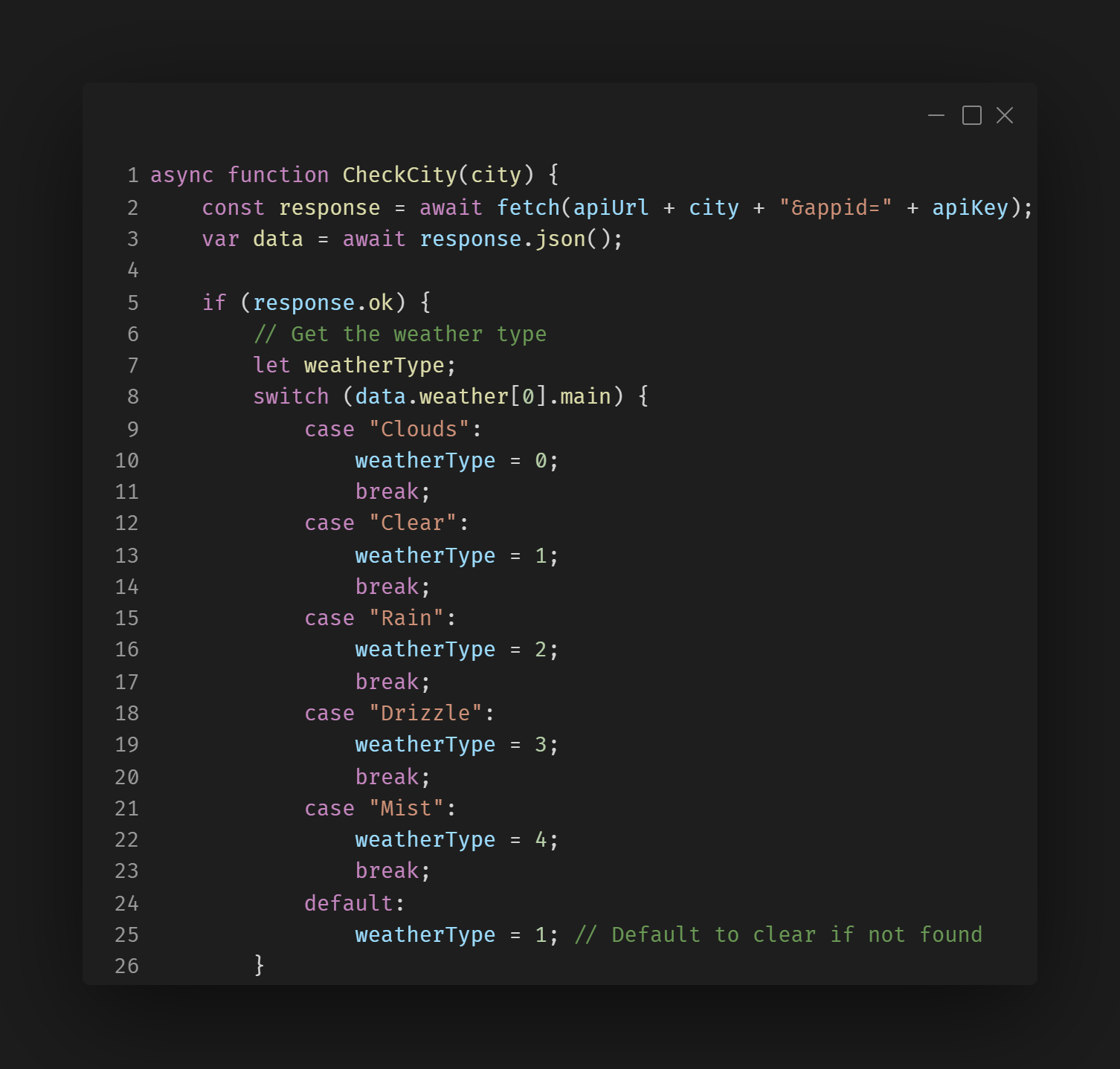
This function CheckCity takes the city input and fetches weather data.
It then checks if the response is valid (response.ok), extracts the necessary information from the response (data.main.temp, data.wind.speed, etc.), and updates the UI accordingly.
Temperature Conversion to Celsius
The function ChangetoCelsius takes the temperature subtracts 273.15 to convert it to Celsius, and returns the rounded value.
Updating the UI with Weather Data
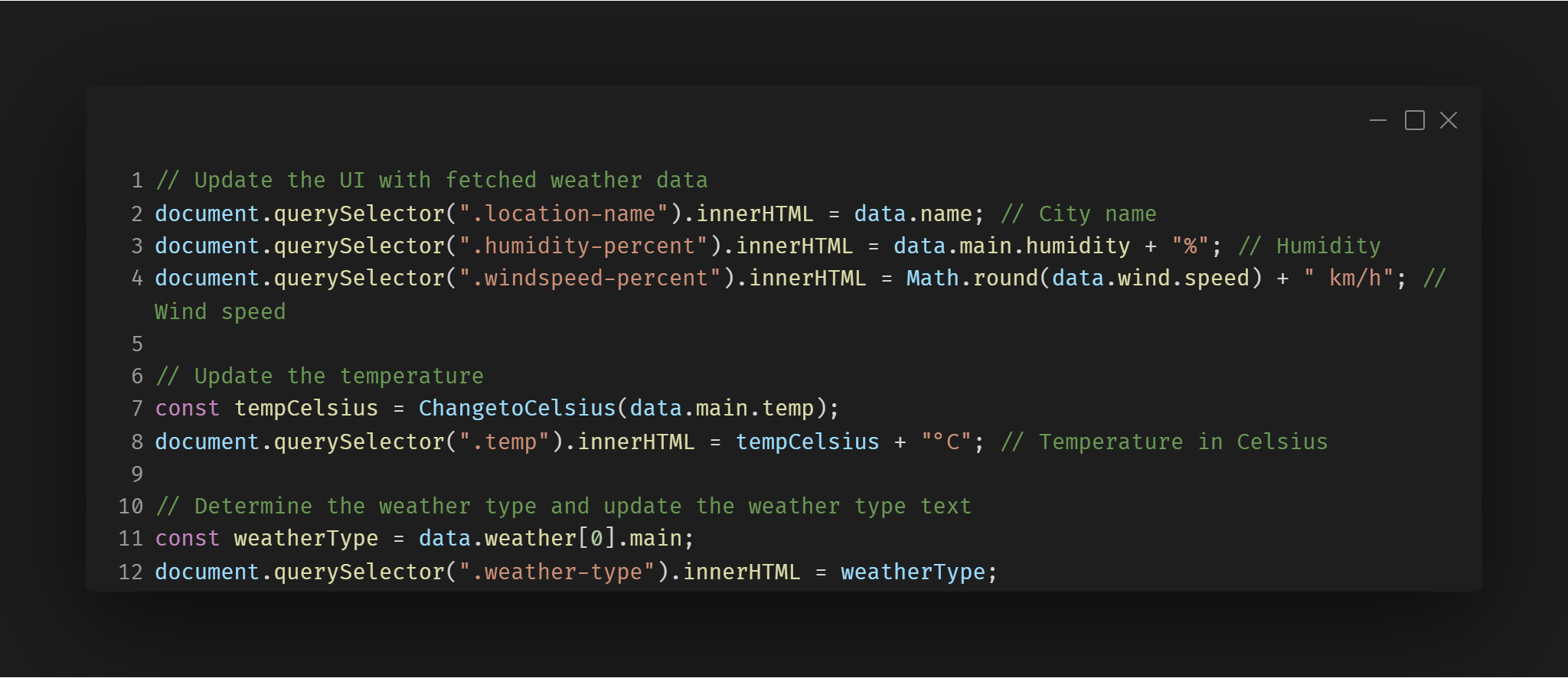
This part of the code updates various elements on the page with the fetched weather data (city name, humidity, wind speed, temperature, and weather type).
Challenges
Managing User Inputs for City Searches
Challange:
When users search for a city, they might enter incorrect spellings or a city that doesn't exist. This can result in an error or no data being returned from the API.
Solution:
I handled this by implementing error checking. If the API returns no data or an error, a friendly message ("Invalid City Name") is shown to guide the user. This ensures the user understands why the weather data isn't displaying.
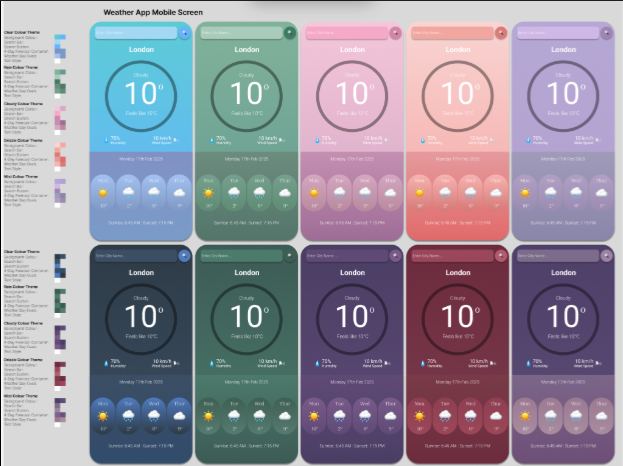
Description
The app changes its theme dynamically based on the current weather conditions. For example, when the weather is sunny, the background becomes brighter, while rainy conditions trigger a darker theme with more muted colors, creating a visual representation of the weather.
Implementation
When the weather data is fetched from the OpenWeatherMap API, the condition (e.g., sunny, rainy, cloudy) is checked.
Based on the condition, the app dynamically adds a corresponding CSS class to the body tag using JavaScript, which adjusts the background color, text color, and other elements for the desired theme.
Transitions are implemented to smoothly shift between themes.
Design Approach
The design adapts to the weather, enhancing the user's experience by providing a visually intuitive representation of the current weather.
The app’s color scheme changes to match the weather (e.g., warm yellow tones for sunny days, cooler blue tones for rainy days), making it not only functional but also engaging.
Click for details
×
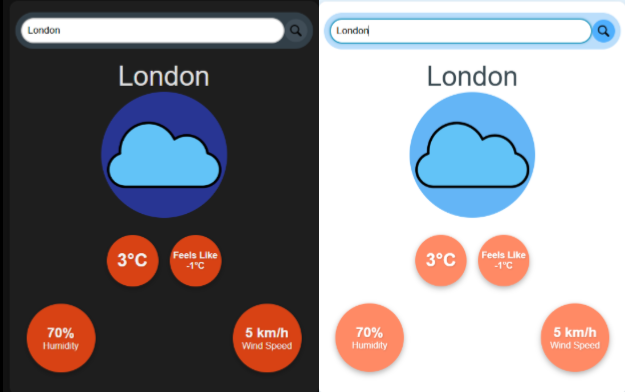
Redesigned Weather App: Dynamic Themes Based on Weather The updated design incorporates dynamic themes that change based on real-time weather conditions. For example, when the weather is clear, the app background becomes bright and sunny, while rainy weather activates darker, stormy tones. This visually engaging approach enhances the user experience, allowing users to instantly understand the weather condition through the theme. The redesign not only improves the aesthetics but also makes the app more intuitive and immersive, offering a visually dynamic and enjoyable weather tracking experience.
Old Weather App Design: Static Interface The previous version of the weather app used a static design, which applied the same visual theme regardless of the weather conditions. This lack of dynamic theming made it harder for users to immediately associate weather data with a visual context. For instance, the same layout and color scheme were used for sunny, cloudy, or rainy conditions, leading to a less engaging experience. This design lacked the immersive, visual appeal that a dynamic theme could provide, reducing the app's overall intuitiveness.
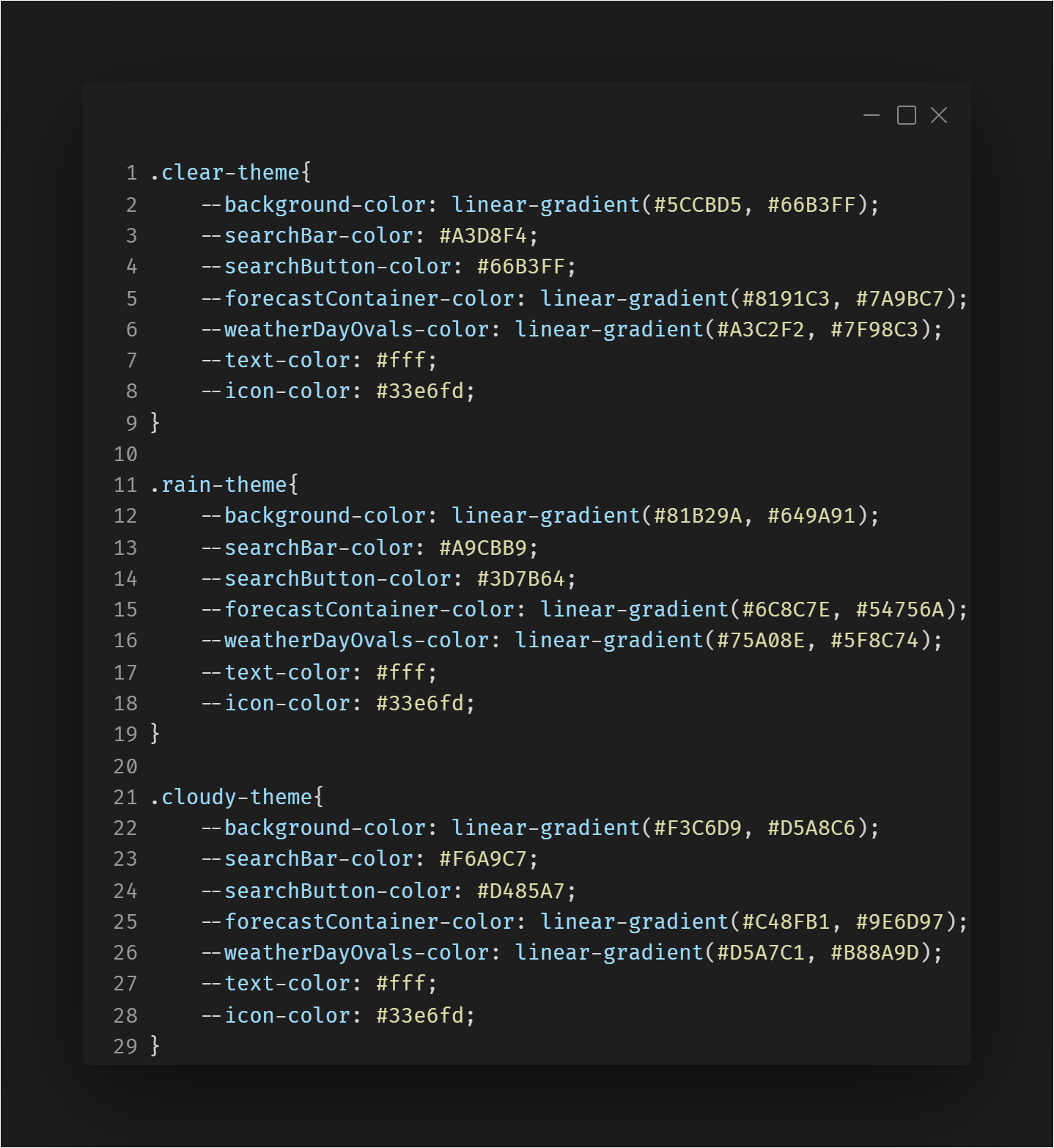
CSS: Defining Themes
This code defines the themes that can be used by updaing the variables depending on the weather
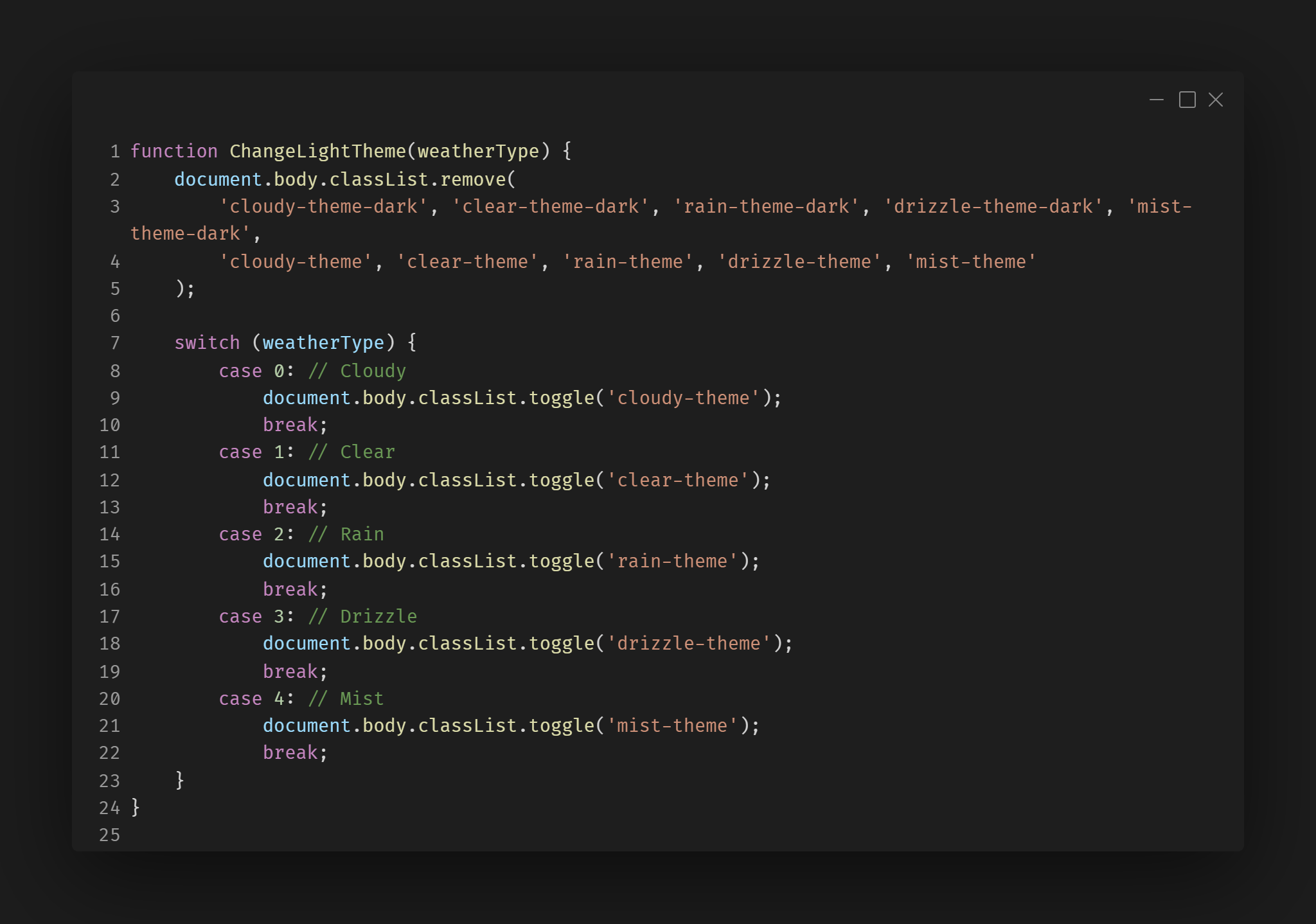
Switching Themes Based on Weather
The following JavaScript handles the dynamic theme switching. It checks the weather condition and applies the appropriate theme classes
Calling Theme Change Based on Weather Data
This JavaScript function updates the UI with the correct weather information and switches the theme accordingly.
Challanges
Ensuring the Correct Theme is Displayed
Challange:
Sometimes the wrong theme would be applied, or the theme wouldn't update properly when switching locations or reloading the page.
Solution:
Implemented a switch statement that assigns a specific numeric ID to each weather condition (weatherType). This ID is then used to apply the correct theme dynamically. By ensuring each weather condition is mapped to the right theme class, the issue was resolved.
Handling Theme Updates When Switching Between Dark and Light Modes
Challange:
When toggling between light and dark mode, old theme classes were sometimes still applied, causing visual inconsistencies.
Solution:
Before applying a new theme, remove all previous theme classes. Used document.body.classList.remove(...) to clear existing theme classes before adding the new one. This ensures a smooth and accurate transition between themes.
Description
Along with the weather information, the app shows the current time and date to keep users informed of the time of day in their location.
Implementation
JavaScript's Date() object is used to retrieve the current date and time in the user's local time zone.
The time is updated every second using setInterval() to ensure the time stays accurate.
The date and time are then formatted in a user-friendly format (e.g., "Monday, March 15, 2025 - 2:45 PM") and displayed at the top of the weather section.
Design Approach
The date and time are prominently displayed in the header of the app to ensure users can quickly check the current time.
The design of the time section is simple, with a clear contrast against the background for easy readability.
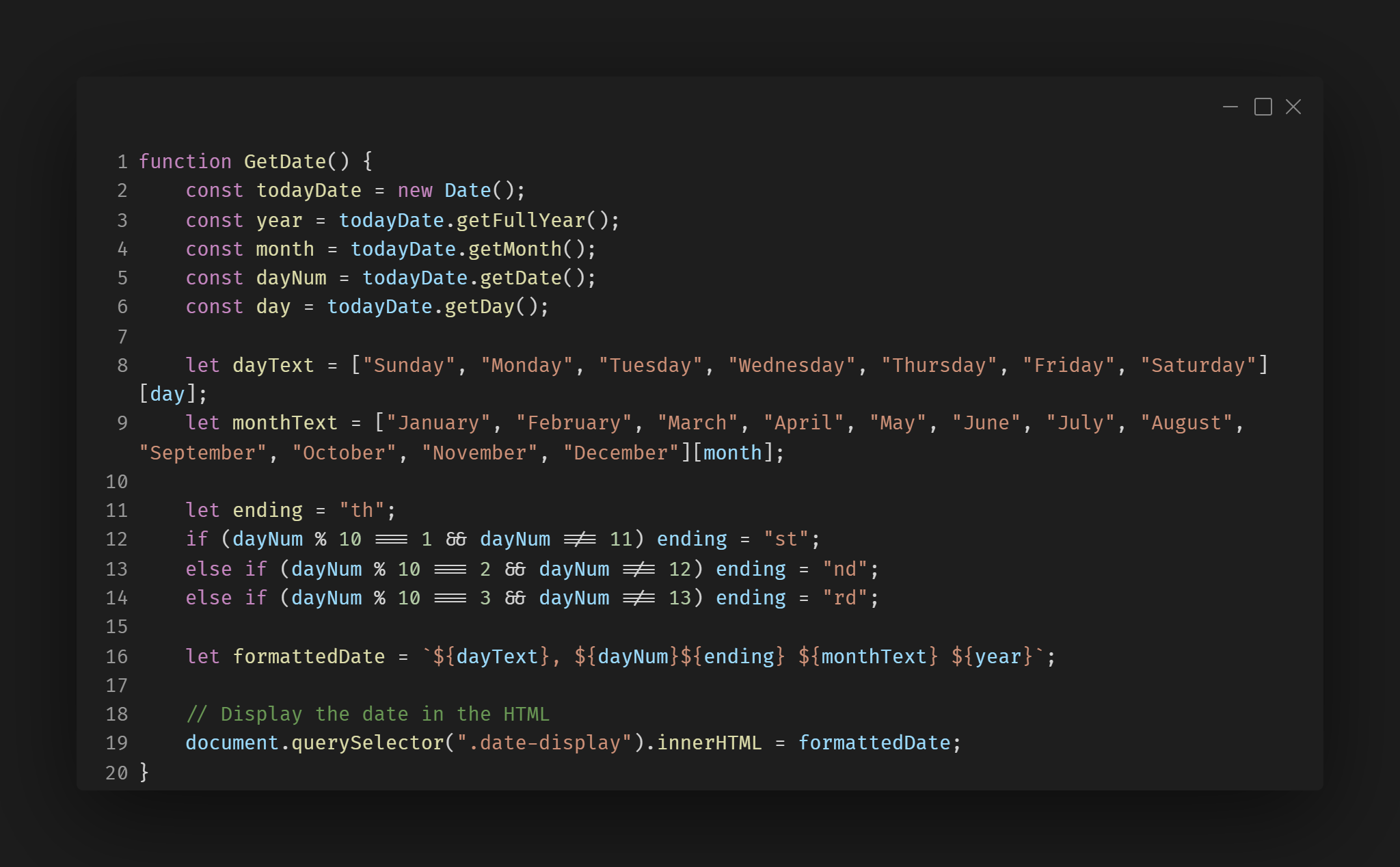
Get and Display the Date
This function formats the current date into a readable format
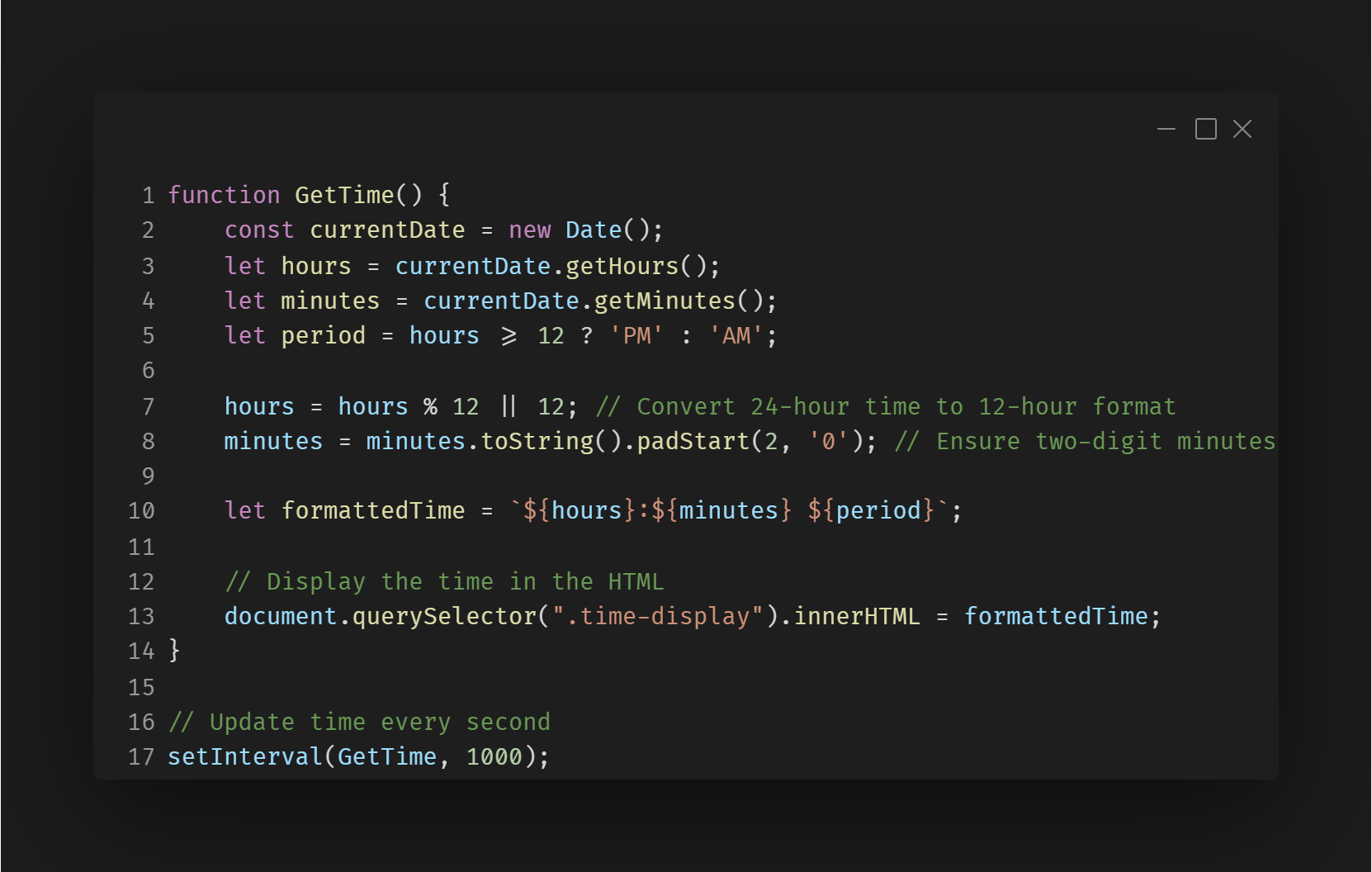
Get and Display the Current Time
This function updates the time dynamically every second, showing it in 12-hour AM/PM format
Challenges
Ensuring AM/PM is Correctly Displayed
Challange:
The AM/PM format might not have displayed correctly if you didn’t properly handle the conversion from 24-hour time to 12-hour format.
Solution:
Use modulus (%) and logical OR (||) to properly convert 00:00 - 23:59 into 12-hour AM/PM format.
Description
The app provides users with a 4-day forecast showing the expected weather conditions for the next few days. Each day's forecast includes the temperature range (high/low), weather condition, and an icon representing the weather.
Implementation
After fetching the weather data from the OpenWeatherMap API, the forecast data for the next 4 days is extracted and displayed.
Each day’s forecast includes the expected high and low temperatures, the weather condition (e.g., sunny, cloudy, rainy), and an icon representing the weather.
The forecast is dynamically populated using JavaScript based on the data received from the API.
Design Approach
The forecast is laid out in a horizontal row, with each day’s weather details clearly separated for easy comparison.
Each day’s card displays the date, weather icon, temperature range, and condition in an easy-to-read format.
The design is kept minimalistic and clean to avoid clutter, ensuring that users can quickly glance at the forecast.
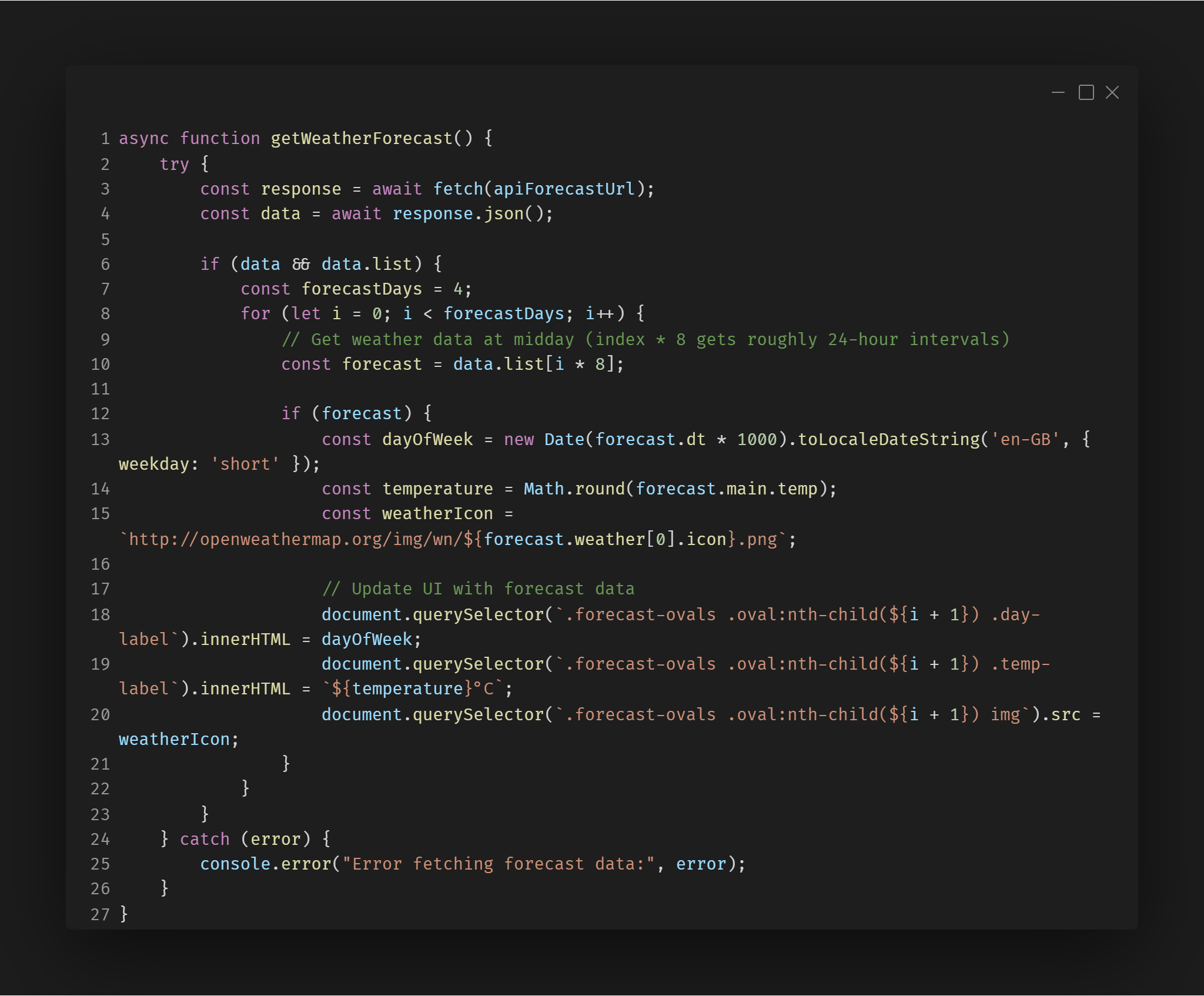
Fetching the 4-Day Forecast Data
Retrieves weather forecast data for the next 4 days.
Selects one forecast per day at midday to ensure accurate temperature trends.
Updates HTML elements with the day name, temperature, and weather icon.
Handles errors to prevent crashes if the API request fails.
Structure for Displaying Forecast
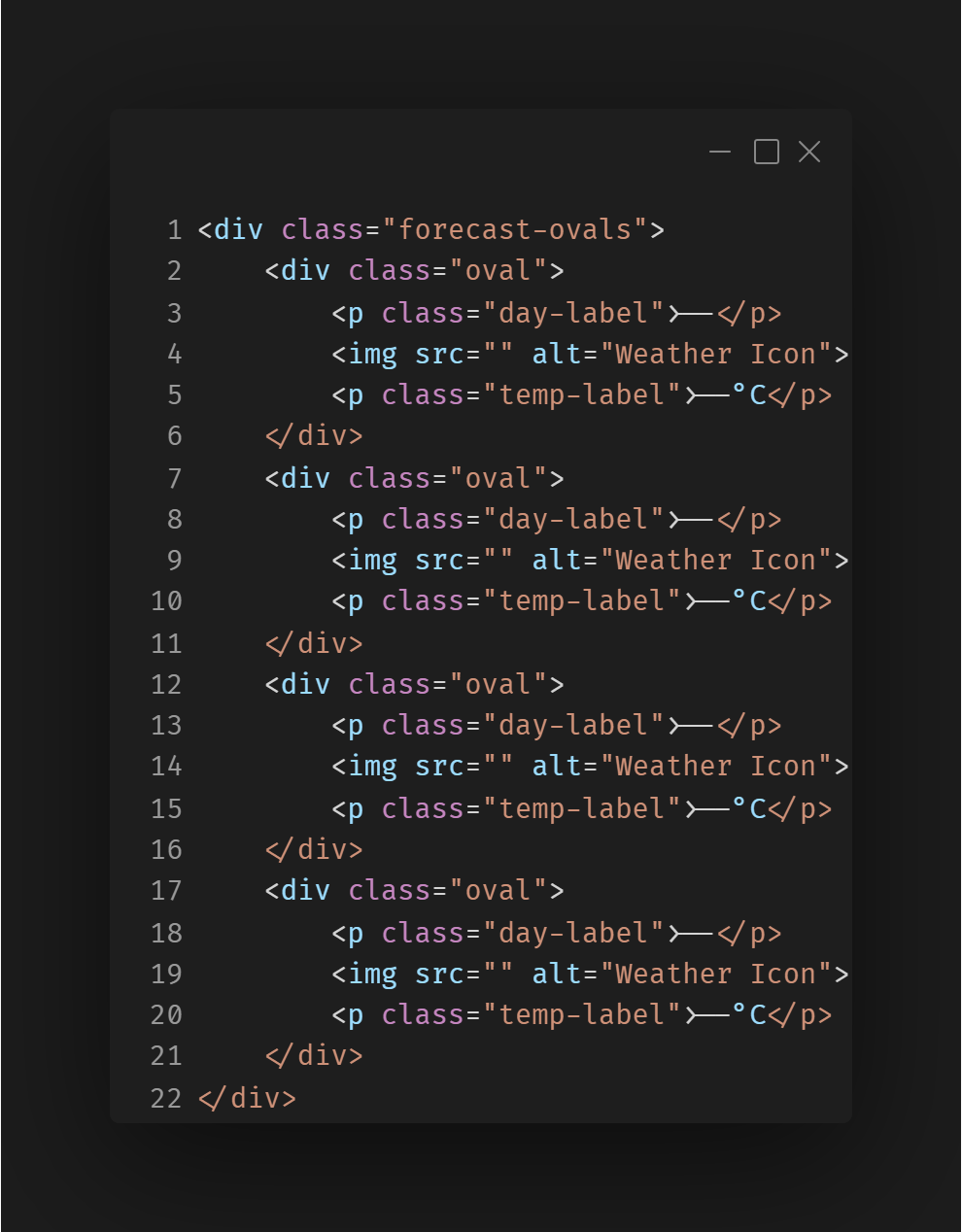
Provides the HTML structure for displaying 4-day weather forecasts.
Each forecast "oval" contains:
Day label (Monday, Tuesday, etc.)
Weather icon (retrieved from OpenWeather API)
Temperature label (25°C, 18°C, etc.)
Challanges
Ensuring Accurate Forecast Data for Each Day
Challange:
The app would display multiple forecasts for the same day instead of just one.
Solution:
I used the index i * 8 because OpenWeather provides data in 3-hour intervals so it made sure the data pciks each new day
What I Learnt
Integrating Real-World Data with APIs:
This project was my first experience working with an API to fetch and display real-world data. I learned how to make asynchronous API requests using fetch(), handle JSON responses, and dynamically update the UI based on real-time weather data. Additionally, I gained experience in error handling, ensuring the app functions smoothly even when the API request fails or unexpected data is received. The project also deepened my understanding of asynchronous programming and how to manage state changes dynamically.
Retrospective
Future Improvements:
Looking back at this project, I encountered several challenges, from ensuring the correct weather theme was displayed to handling API response inconsistencies. Debugging these issues taught me the importance of structured problem-solving and testing edge cases. I also realized the importance of responsive design, as displaying forecast data on different screen sizes required careful layout adjustments.